Multi-store builds
Multi-store builds make it easier to use a single shared codebase across multiple Shopify stores.
The key difference relates to how static theme files are managed:
- Site-specific static theme content such as templates and settings is stored under
stores/NAME/static/. - Shared static theme content such as image assets, sections, and snippets continue to be stored in
static/.
Unchanged by multi-store builds:
- Components and styles continue to be shared between stores.
- If you want site-specific functionality or styles, these should be exposed as settings, additional blocks/sections, etc. which the merchant can configure in their theme customizer.
- This feature does not automatically sync or merge site content with merchant shops.
- This could be automated by your deployment/theme management tooling, but multi-store builds still make it easier to version and manage content for multiple shops even if you are handling the content manually.
- You can continue to use shared static content for as much of your theme as you wish, using multi-store builds for only templates, only config, only locales, or any combination of these.
- A minimal set of shared static content (i.e. layout, key templates) is required to properly compile your theme, so you cannot complete replace all your static files with store-specific content.
The compiler switches to multi-store builds automatically when a stores/ directory is present.
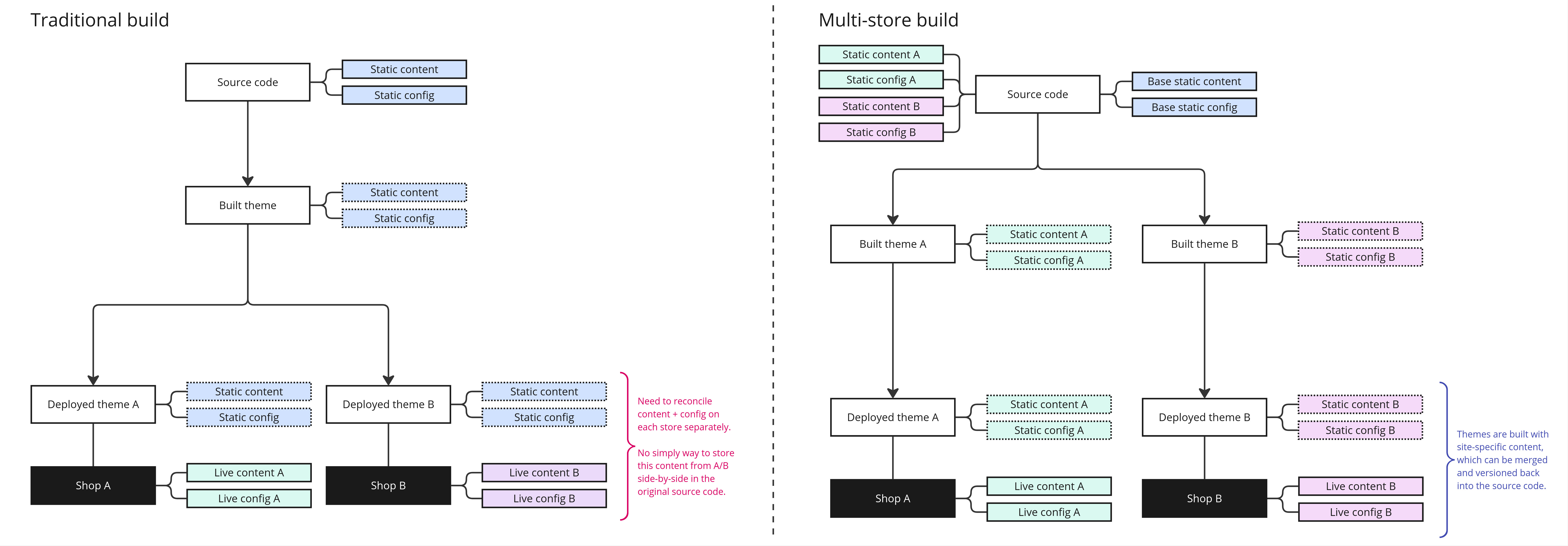
Although we refer to each compiled theme output here as a 'store', in practice one output could be shared between multiple Shopify shops depending on the deployment setup. SALVO-TS is only responsible for producing the separated output, and it's up to the rest of your setup to determine how to sync these with merchant shops.
How it works
The core of your theme is still compiled only once - components, stylesheets, and your regular static files are compiled to create your 'base theme'.
The 'base theme' is then duplicated for each store and all of the store-specific content and templates is configured for that store specifically.
Multi-store file structure
Directoryassets
Directoryicons SVG Icons (docs)
- my-icon.svg
- ...
Directorystyles Global styles
- theme.scss
- ...
Directorydist
Directorybase Compiled base theme output
Directoryassets
- …
Directoryconfig
- …
Directorylayout
- …
Directorylocales
- …
Directorysections
- …
Directorysnippets
- …
Directorytemplates
- …
Directoryexample-eu Compiled EU theme output
Directoryassets
- …
Directoryconfig
- …
Directorylayout
- …
Directorylocales
- …
Directorysections
- …
Directorysnippets
- …
Directorytemplates
- …
Directoryexample-row Compiled ROW theme output
Directoryassets
- …
Directoryconfig
- …
Directorylayout
- …
Directorylocales
- …
Directorysections
- …
Directorysnippets
- …
Directorytemplates
- …
Directorysrc
Directorytheme Services & base classes
- Cart.ts Shopify cart service (docs)
- ThemeComponent.ts Base component class
Directoryutils Utility functions
- …
- main.ts
Directorystatic Shared/base static files
Directoryassets
- logo.svg
- ...
Directoryconfig
- settings_data.json Base/reference configuration
- settings_schema.json Shared configuration schema
Directorylayout
- theme.liquid
- ...
Directorylocales
- en.default.json
- ...
Directorysections
- main-product.liquid
- main-cart.liquid
- header-group.json
- footer-group.json
- ...
Directorysnippets
- …
Directorytemplates
- index.json
- product.json
- cart.json
- ...
Directorystores Store-specific content
Directoryexample-eu
Directorystatic
Directoryassets EU-specific assets
- logo.svg
Directoryconfig EU-specific configuration
- settings_data.json
Directorylocales EU-specific language
- en.default.json
- fr.json
- de.json
Directorysections EU-specific section group settings
- header-group.json
- header-group.context.de.json
Directorytemplates EU-specific templates
- index.json
- index.context.de.json
- page.foo_campaign.json
- ...
Directoryexample-row
Directorystatic
Directoryassets ROW-specific assets
- logo.svg
Directoryconfig ROW-specific configuration
- settings_data.json
Directorylocales ROW-specific language
- en.default.json
- fr.json
- de.json
Directorysections ROW-specific section group settings
- header-group.json
- footer-group.json
Directorytemplates ROW-specific templates
- index.json
- page.bar_campaign.json
- ...
- .eslintrc.js
- .gitignore
- package.json
- package-lock.json
- salvo.config.js SALVO-TS configuration file (docs)
- tsconfig.json
Considerations and limitations
Supported content types
Assets
Store-specific assets (from
stores/*/static/assets/) will directly overwrite base assets (fromstatic/assets/) with the same filename.
- ✅ Store-specific assets are supported.️
- ℹ️ Store-specific liquid assets (
.css.liquid/.js.liquid) are supported, however compiler macros will not be processed.
Config
Store-specific settings data (
stores/*/static/config/settings_data.jsonwill directly override the base settings (fromstatic/config/settings_data.json).
Note that the compiler does not validate that store-specific settings data matches the current schema.
- ✅ Store-specific settings data is supported.️
- ❌ Store-specific settings schema (
config/settings_schema.json) is not supported, and must be shared.
Locales
Store-specific locales (from
stores/*/static/locales/) will directly overwrite base locales (fromstatic/locales/) with the same filename.
- ✅ Store-specific locales are supported.
Sections
Store-specific section groups and context adaptions (from
stores/*/static/sections/) will directly overwrite base files (fromstatic/sections/) with the same filename.
- ✅ Stores-specific section groups are supported.
- ✅ Context adaptions are supported.
- ❌ Store-specific sections are not supported.
Templates
Note: Store-specific JSON templates and context adaptions (from
stores/*/static/sections/) will directly overwrite base files (fromstatic/sections/) with the same filename.
- ✅ JSON templates are supported.
- ✅ Context adaptions are supported.
- ❌ Liquid templates are not supported.
Unsupported content types
The following cannot be replacing using store-specific content:
❌ Layouts
❌ Settings schema
❌ Sections (except section groups)
❌ Snippets
❌ Template files with .liquid extensions
❌ SVG Icons
Attempting to create store-specific content for any of these files will result in an error.
Switching to multi-store builds
When using multi-store builds, it's generally advisable to try to avoid store-specific content where possible. While in some areas it is unavoidable (i.e. settings data), when you have the choice between writing a feature in a store-specific manner vs. writing the same feature to be generic and putting it behind a theme setting, choose the latter.
This helps manage changes and reduce the number of variables you need to consider when working on the core theme.
To manually update your project to start using multi-store builds:
- Create multi-store structure
- Create the
stores/directory in your project root. - Under this directory, add a directory for each independent store in your project.
It's recommended to name this directory based on the Shopify store handle (i.e. the
exampleinexample.myshopify.comoradmin.shopify.com/store/example) - In each store directory, create (at least) a
configdirectory andsettings_data.jsonfile.
- Create the
- Add content
- Add other store-specific files according to the file structure above as needed.
- Build themes
- Delete the
dist/directory to remove existing compiled files. - Build your theme(s) using
npm run prod.
- Delete the
- Update deployment tooling
- Your previous theme now compiles to
dist/base/, and your store-specific themes compile to their own folders underdist/. - Update your other development and deployment tooling to use these new output paths.
- Your previous theme now compiles to
The compiler switches to multi-store builds automatically when a stores/ directory is present.
Multi-store build output
When compiling your project with multi-store builds enabled, a theme is created under dist/ for each store your specify.
A base theme is also output at dist/base/. This theme is identical to what would normally be built if you had multi-store builds disabled, and you can consider it to be the 'canonical' or 'reference' version of your theme.
Multi-store development experience
By default when compiling a multi-store build project in dev mode (npm run dev), builds are processed for all stores. This can result in longer compile times and lead to a poor developer experience if i.e. you are running a live preview for only one of the stores and don't currently care about the others.
To build only a single store pass the --store argument to the compiler. Use -- to separate arguments for NPM from arguments to the compiler:
sh
sh
When you exit the compiler (i.e. by pressing ctrlc) while running with the --store argument, it will perform a one-time build of all the stores in your project. This helps catch situations where you've only tested building store A, but store B and C have build errors.
The --store argument is not available in production builds, to ensure all stores build correctly and are up-to-date.
Reconciling store-specific content
Once your theme is published and customized by the merchant, certain store-specific content will be changed on their shop. Usually you will want to regularly reconcile these changes back into your source code to avoid reverting merchant changes when publishing new builds of your theme.
Guidelines for reconciling content changes:
- Avoid copying unchanged shared files into store-specific content. For example, if you have a shared
templates/cart.jsontemplate and it is not changed on any store, avoid copying it tostores/*/templates/cart.jsonand inadvertently making it store-specific. - Assets
- New assets: Avoid adding store-specific assets unless they conflict with other stores, prefer to add new theme assets to the shared assets were possible.
- Existing store-specific asset was updated: Update the asset in your store-specific content.
- Existing store-specific asset was deleted: Delete the asset from your store-specific content.
- Existing shared asset was updated: Avoid creating store-specific assets to overwrite shared assets - prefer to rename the file and treat it as separate asset.
- Existing shared asset was deleted: Avoid removing shared assets, unused assets are usually not an issue.tip
Generally speaking it should be possible to completely avoid store-specific assets unless the total theme assets cause it to hit theme filesize limits.
- Config
- Copy the new settings_data.json to your store-specific content.
- Consider selecting one store to be considered 'canonical', and use that store's settings data to update your shared settings data too.
- Locales
- If the merchant has an exclusive store for each language (i.e. no locale file is used by more than one store, in any capacity), avoid using store-specific content for locales, and just update the shared locales based on their authoritative store.
- Otherwise, copy the new/updated locale files to your store-specific content.
- Consider selecting one store to be considered 'canonical', and use that store's locales to update your shared locales too.
- Sections
- Copy the new/updated section group to your store-specific content.
- Templates
- Copy the new/updated template to your store-specific content.
These guidelines only apply to store-specific content (i.e. those files which are supported in store-specific builds.)
If a merchant makes changes to other files which cannot be handled in store-specific way - such as compiled JS, stylesheets, Liquid templates, etc. then these should be handled separately, by recreating their changes directly in the core theme code.